example.test
DNSwwwAPI
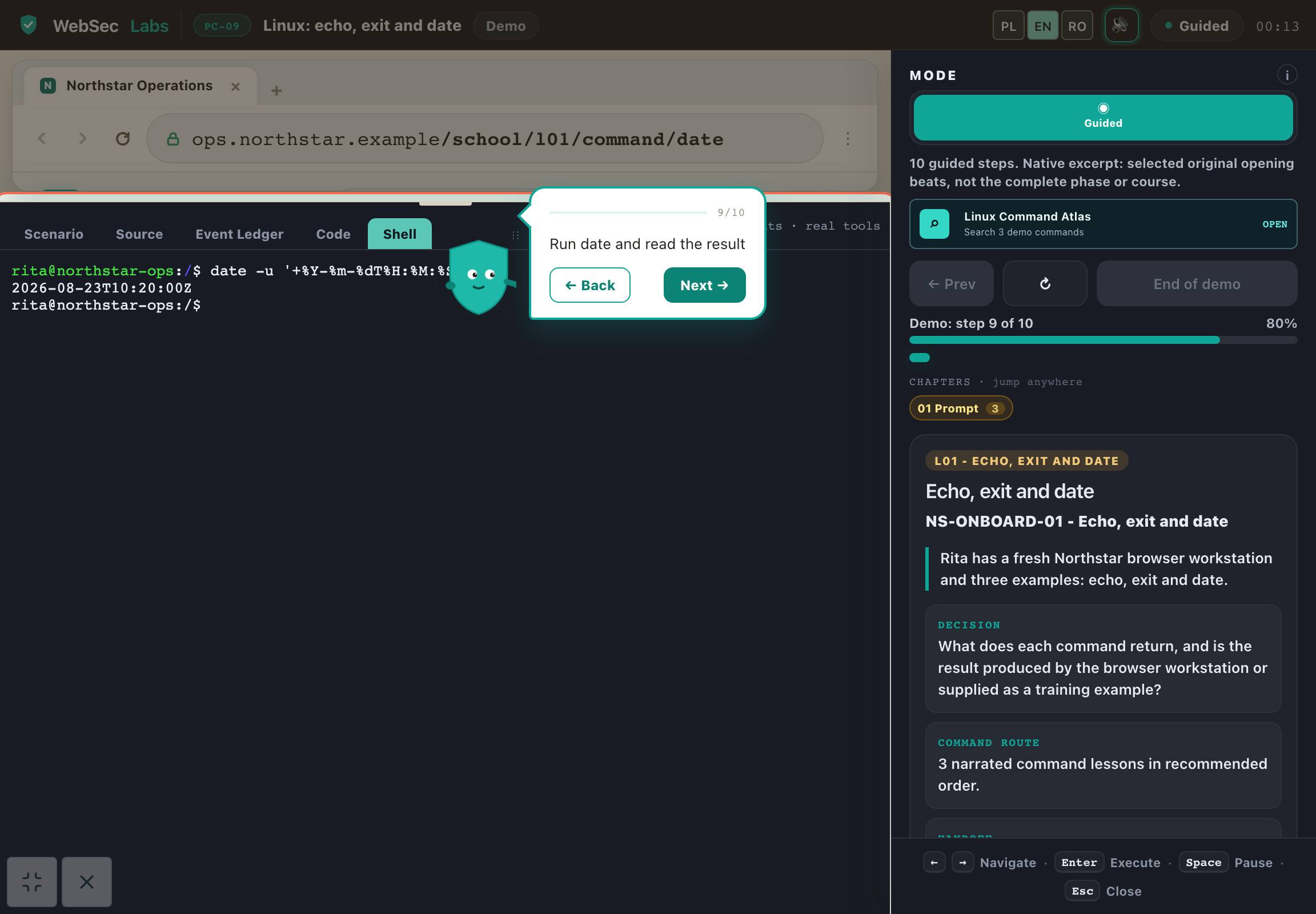 See the working demo ↓A screenshot — the working demo is below
Enrolment opening soon
Linux and terminal work
Get comfortable with the terminal from your first command and build everyday Linux skills. Learn file navigation, permissions, filters and log analysis. Progress from individual commands to diagnosis and an organized handover of results.
PLN 249planned price including tax
In your browser · No installation · Tutor and narration
Look inside
Demo: course excerpt
Full course: Linux from basics to troubleshooting
We will notify you when the full course launches. No obligation to buy.
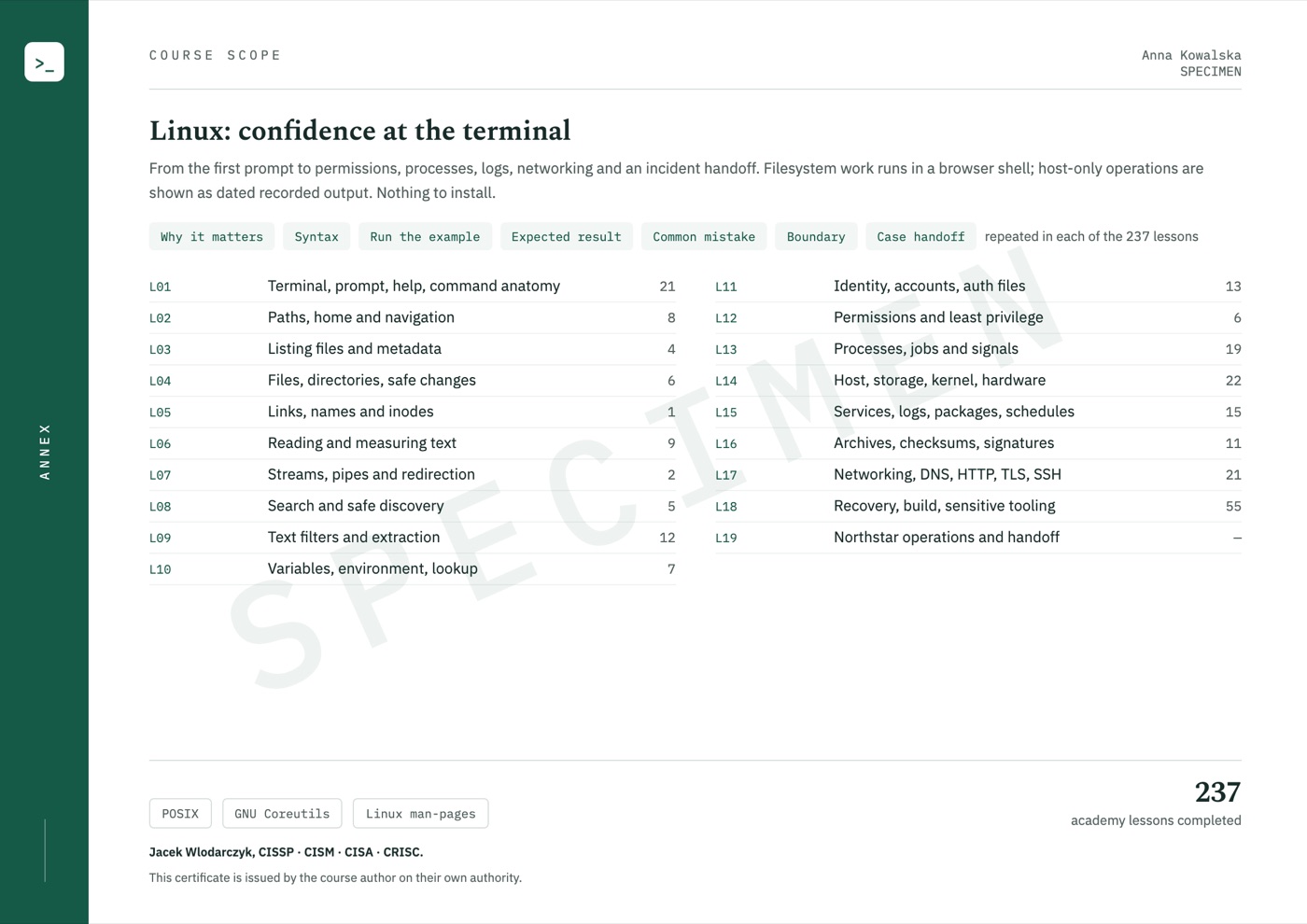
The figures describe the full course's English-language source materials. The demo is available in Polish and English. 237 lessons does not mean 237 distinct executable commands: 62 run in the browser, 69 have recorded system output and 106 are reference lessons.
Only 10 introductory steps: echo, exit and date, with explanations of their output. Other lessons and missions are not part of the demo.
A selected excerpt of an upcoming course in its original layout and exercise environment. The demo does not cover the entire course or mean that sales are open.
Open your browser. Start learning.
Do not spend your first evening configuring an environment. The application, tools and task context are in one place. You do not need Docker, a VPN, a virtual machine or paid software.
A virtual tutor walks you through the example and highlights important parts of the application, code or tool. Connect the instruction to what is happening on screen.
Narration explains the mechanism, decision and result. Pause the guidance, return to an earlier step and work through it at your own pace.
Take over in the exercise: change data, run a test or make a decision. Compare the result and improve your solution using the explanation.
One environment, without switching between a video and a local installation. Tools fit the topic: from HTTP requests and code to a terminal, calculator or document. Practice in simulators and prepared cases, without attacking other people's systems.
What will you be able to do?
Learn commands through tasks involving files, permissions, processes and logs. Understanding the effect matters, not memorizing command lists.
The terminal feels unfamiliar and paths are easy to confuse.
Identify the current directory, find the required file and check its contents and permissions before changing it.
You read a large log manually from beginning to end.
Prepare a summary from text data and explain which entries the filter selected.
When an error occurs, you try random commands.
In the Northstar case, record evidence, choose the next check and propose how to verify a fix.
Build a foundation for security tools, log analysis and later Bash automation. No terminal experience is required at entry.
Connect each skill to a concrete work product. Return to explanations while you practice.
A syllabus backed by materials
See what makes up the syllabus: lessons, explanations, examples and exercises. The figures below describe different types of materials.
The figures describe the English-language source materials. The waiting list is for the planned Polish edition. These counts do not mean its translation is complete. Demonstration steps, examples and tasks are different units, not hours of video or counts of unique vulnerabilities.
Entry point
Available in Polish and English — you can switch language at any time. Command names, code snippets and standard identifiers remain in their original form.
How you learn
The tutor walks through an example and explains each decision. In the exercise, return to the context, check the result and improve your answer.
Goal, constraints and inputs. Know what you are testing and why.
Watch a demonstration with tutor commentary, step by step.
Work with data, a tool or a scenario. Compare the result with your expectation.
Justify your decision and understand its limitations. Return to anything that needs improvement.
Exercises use simulators and selected mechanisms that run in the browser. They do not require attacking other people's systems.
Planned syllabus
Each area develops a specific skill. Learn not only the topic but also the action and outcome that learning leads to.
Each topic includes a skill and a concrete exercise outcome.
I want to join the listRecognize the prompt, command name, option and argument. Use help and simple commands to inspect the current situation. Learn to read output instead of assuming silence means nothing happened.
Tutor-guided exercise
Practice absolute and relative paths, the home directory and moving between directories. Check how the current directory affects a command. Correctly handle names containing spaces and special characters.
Tutor-guided exercise
Compare normal and detailed directory views, hidden files and result sorting. Read file size, date, type and owner. Choose a display suited to your question.
Tutor-guided exercise
Create directories, copy and move files and rename them. Check state before and after an operation. Practice careful deletion of working material while preserving required originals.
Tutor-guided exercise
Compare symbolic and hard links and inspect their targets. See the difference between a name and file data. Explain why an operation on one path can affect what appears at another.
Tutor-guided exercise
Choose whole-file, beginning, end or paged views. Count lines and inspect numbering to reference material precisely. Prepare a short extract from a large file.
Tutor-guided exercise
Separate standard input, output and errors. Compare overwriting, appending and redirection order. Connect commands in pipelines and retain selected output with tee.
Tutor-guided exercise
Use find and grep with a limited scope, deliberate patterns and quoting. Check names beginning with a hyphen and shell-expanded arguments. Prepare a search that can be repeated safely.
Tutor-guided exercise
Combine sort, uniq, cut, awk and sed to select lines, fields and repeated values. Build a log summary instead of reading manually. Check how filter order affects the final result.
Tutor-guided exercise
Distinguish shell state from variables passed to processes. Trace PATH, command lookup, aliases and files sourced into the current session. Explain why the same command can behave differently in another context.
Tutor-guided exercise
Identify the user executing a command and group membership. Learn account-information structure and credential-access boundaries. Connect permissions to the process's actual user.
Tutor-guided exercise
Translate rwx into numeric and symbolic modes, and learn umask and special permission bits. Compare file ownership with read, write and execute access. Choose minimal permissions for the task.
Tutor-guided exercise
Analyze process identifiers and state, shell jobs, waiting and termination. Choose signals for the purpose using available examples. First establish what owns the process and what the action could affect.
Demonstration with explanation
Read system, kernel, memory, CPU and disk-space information. Connect usage and mounted resources to diagnosis. Host materials support practice interpreting system data beyond the browser model.
Demonstration with explanation
Connect a service definition, state and logs to package versions and scheduled tasks. Learn the role of the system journal, cron and timers. Use supplied materials to plan a service or startup-failure check.
Demonstration with explanation
Prepare an archive, check its contents and read compressed material. Calculate a file hash and compare it with a manifest. Learn the role of signatures and the difference between encoding, compression and data protection.
Tutor-guided exercise
Analyze interfaces, routes, sockets, name resolution and HTTP responses. Read certificate information and trust rules for SSH and file transfers. Combine observations into a connection-diagnosis plan.
Demonstration with explanation
Learn the context of editors, program builds, resource mounting and recovery work. Reference material also covers tools requiring broader host access. Establish required permissions and conditions before proposing such an action.
Case analysis
Combine navigation, filters, logs and file checks in a Northstar task. Record observations, a proposed action and commands to verify the fix. Prepare material another person can use to continue the analysis.
Workshop with prepared data
In practice
Each case has context, a concrete action and an outcome. The goal is not to memorize a command but to understand why the result changed.
Find the required files, inspect metadata and combine filters to analyze content. Preserve input and output and explain each command's role in the pipeline.
Work productRepeatable commands and a summary prepared from text data.
Combine files, permissions, logs and supplied service information. Identify a likely cause and the required check, then prepare material for the next person.
Work productA diagnosis notebook, preserved observations and a fix-verification plan.
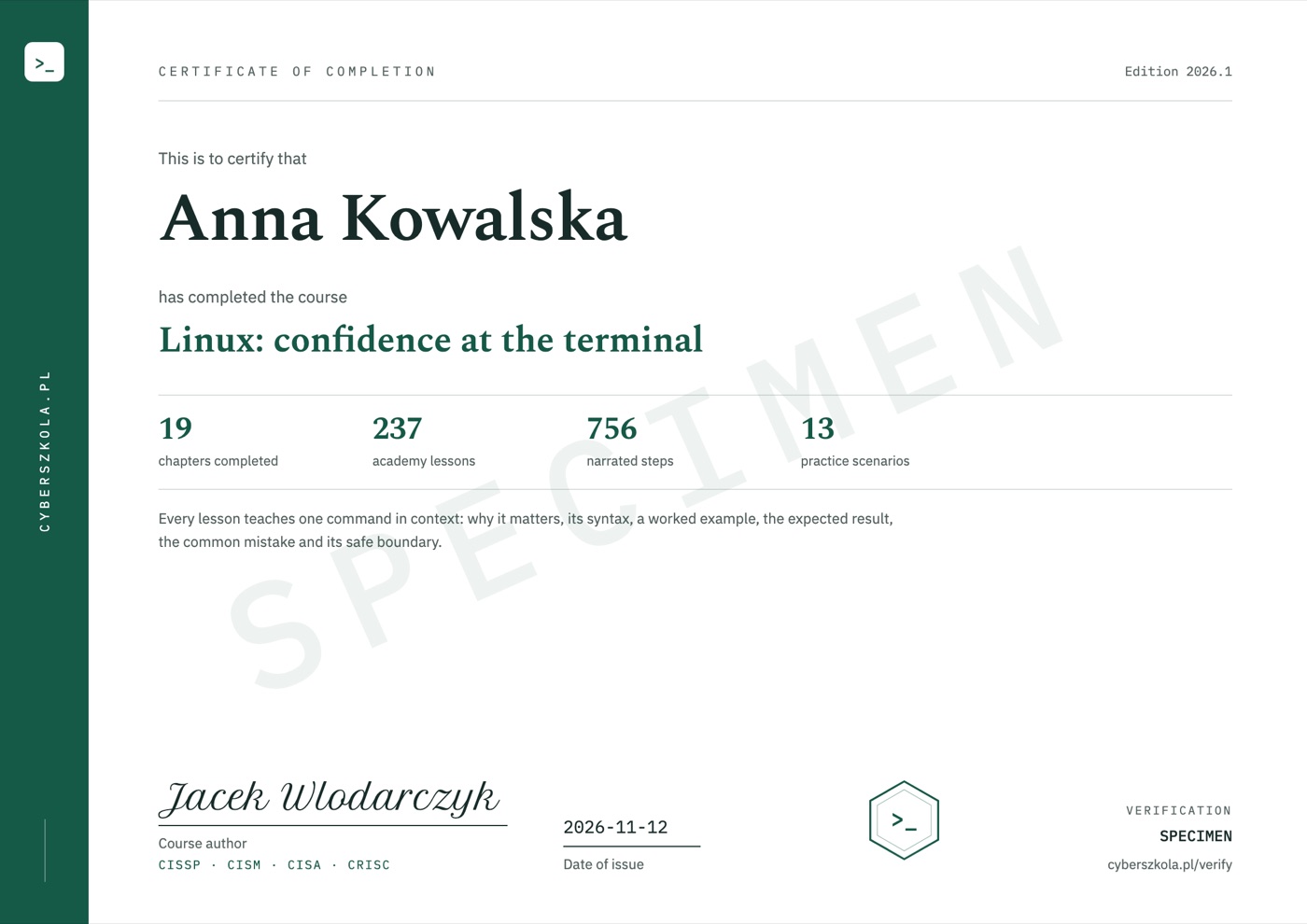
Certificate of completion
When you complete the course, the certificate is issued automatically and emailed to you. It shows your name, the date of issue and a unique code, and its second page lists the course scope.
Code verification: cyberszkola.pl/verify
Upcoming standalone course
Planned course price
Polish edition · Launch date not yet announced
Notify me at launchJoining is free. Before sales open, you will receive the date, full scope and purchase terms. We are not taking payments today. This is a separate interest list, not a place reservation or purchase.
For companies and teams
Compatible with LMS platforms including:
and other platforms that support e-learning standards.
Price for companies
Delivery into your company's own LMS from 50 licences.
Ask for a quoteWrite to kontakt@cyberszkola.pl: the number of people, the courses you want and your LMS, if you use one.

Project author
Creator of Cyberwiedza, cyberszkola and AI SecLabs. In these courses, I connect explanations of mechanisms with practice, observation and decisions you need to justify.
Running a command is not enough. What matters is what its output confirms, what it does not confirm and what the next step should be.
More about the authorBefore joining
Yes. The introduction explains the prompt, commands, options and arguments. Before pipelines or diagnosis, practice simple operations and check their results.
No. Practice in the built-in browser terminal. You do not install Linux, a virtual machine or Docker. Topics requiring a full system also use supplied command records and output, without running your own host.
No. This is an upcoming course announcement and an interest list. Joining is not a purchase, a place reservation or a commitment to pay.
The launch date, price and access terms will be announced before sales open. The interest list is how we send that information.
The course is available in Polish and in English — you can switch language at any time, and lessons, exercise explanations and narration exist in both. Commands, code and tool names keep their original syntax, as used in everyday work.
No. All course exercises run in your browser on a computer with internet access. Training applications, terminals, editors and workshops are part of the platform. You do not install Docker, a virtual machine or a VPN, and you do not need paid external tools.
No. You work in an interactive environment. A virtual tutor highlights important elements, and narration explains the action and its result. Pause the lesson, return to earlier steps and run your own experiments. This guidance is built into the course, not individual consultation with a person.
No. You use training applications, simulators and prepared data. Learn the mechanism and its limitations in a safe environment. External resources are supplementary, not required to complete the exercises.
Yes, a certificate of completion. When you complete the course, you receive a certificate in English with a unique code that anyone can check at cyberszkola.pl/verify. It confirms completion of the course and is issued by the author; it is not an industry certification. We do not promise employment.
No. These are independently authored courses using public references and original cases. They do not replace licensed standards, accreditation or qualifications required in regulated industries.
Join the waitlist
Leave your email address. We will send you news of enrollment, the syllabus and first-edition terms. You will not need to keep checking this page.
Planned price: PLN 249 including tax